stellarbridge Trust Portal User Manual
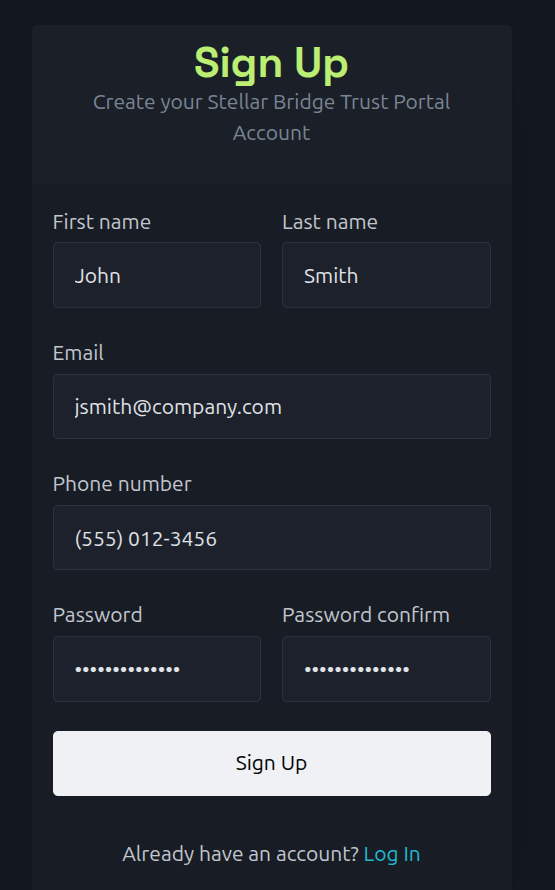
User sign-up
Fill out the form with your email address, phone number, and password. Click the "Sign Up" button to create your account.
MFA setup
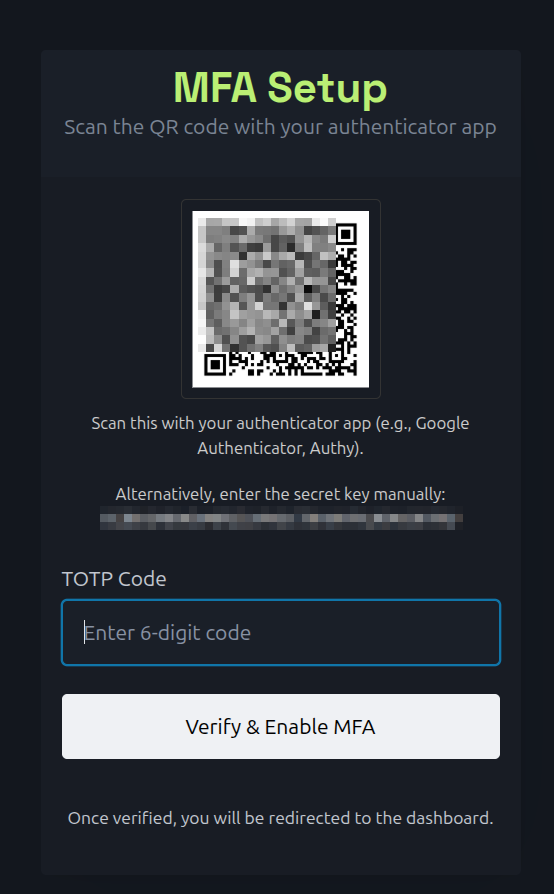
Follow the instructions to set up multi-factor authentication (MFA) for your account. Scan the QR code using your favorite authenticator app. You can also type in the secret key manually. You will be provided with a verification code. Enter the code and click "Verify" to complete the setup.
User login
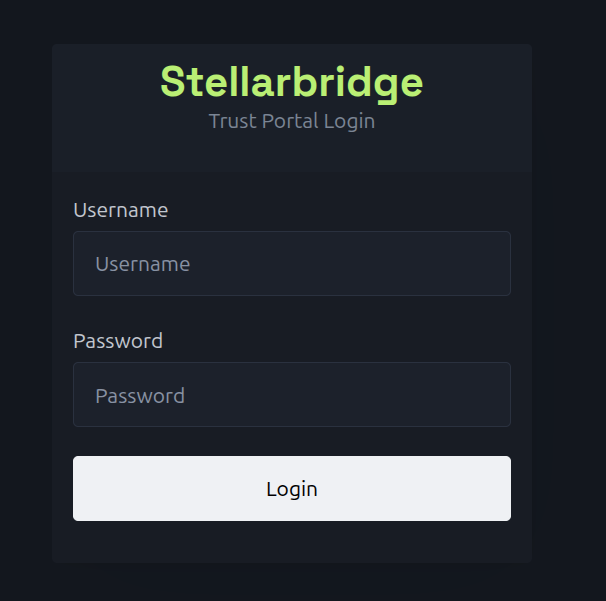
Enter your email address and password. Click the "Login" button to access your account.
Trust Portal home
If you have already made requests for information, you will see them listed here at the trust portal home.
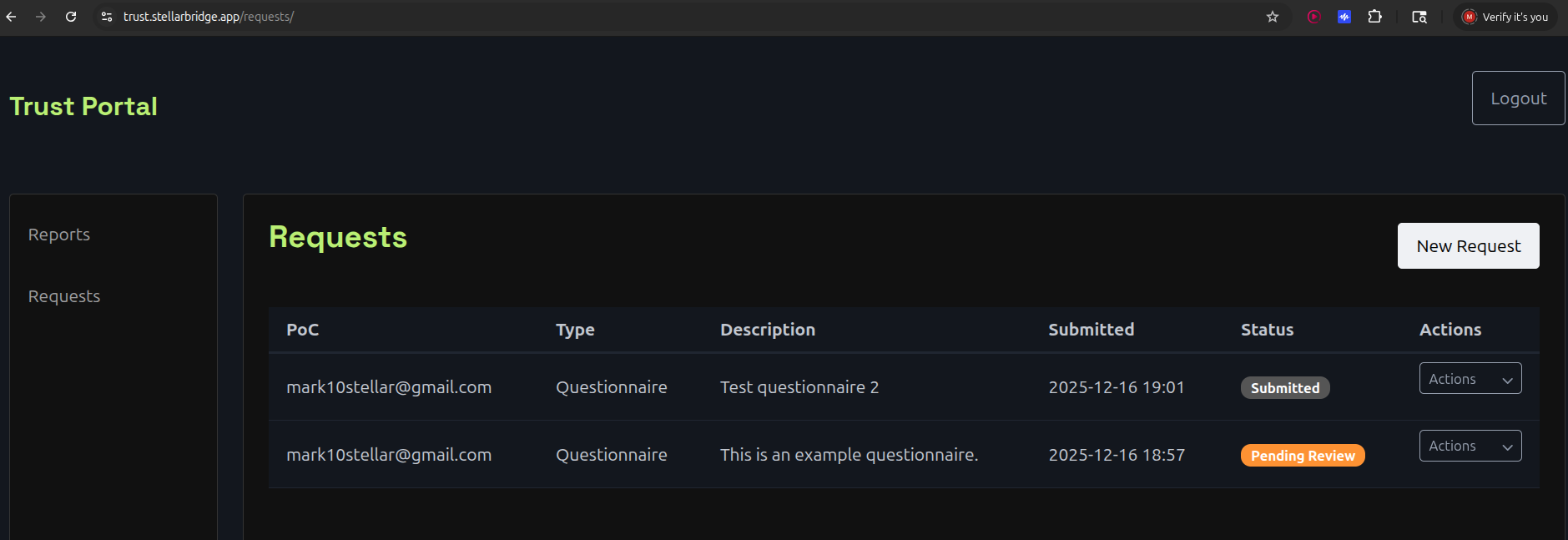
Make a request for information
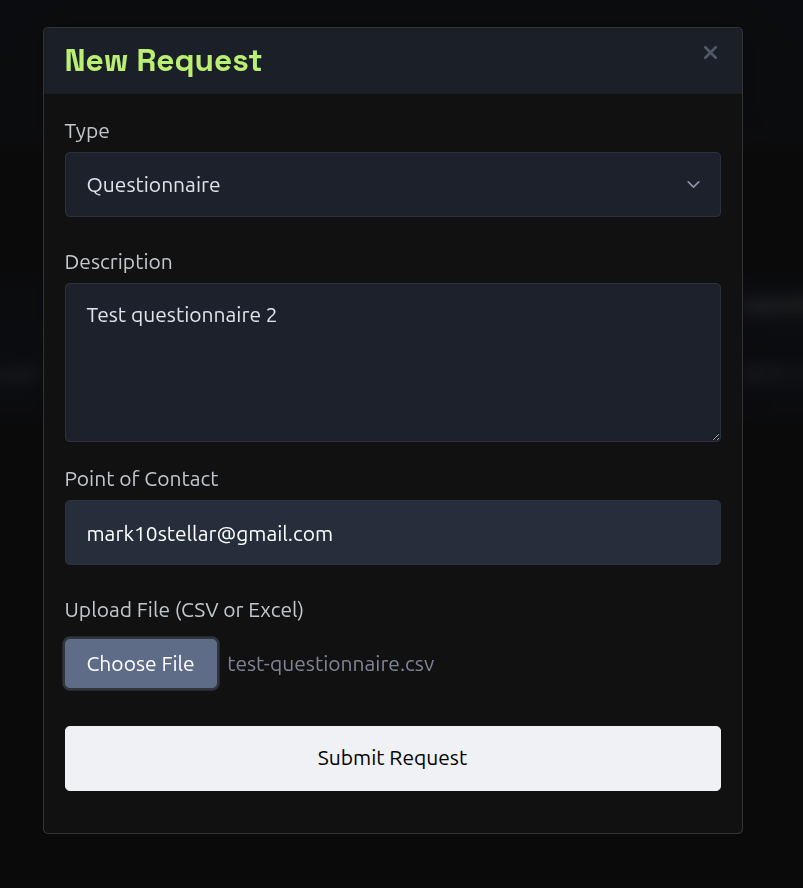
Click on the "New Request" button to start a new request. Fill out the form with the details of your request and click "Submit". You can prepare a document with questions and upload it via "Choose File"; click "Submit Request" and the system will generate an answer. Your answer will be reviewed by a team member and you will be notified when it is complete.
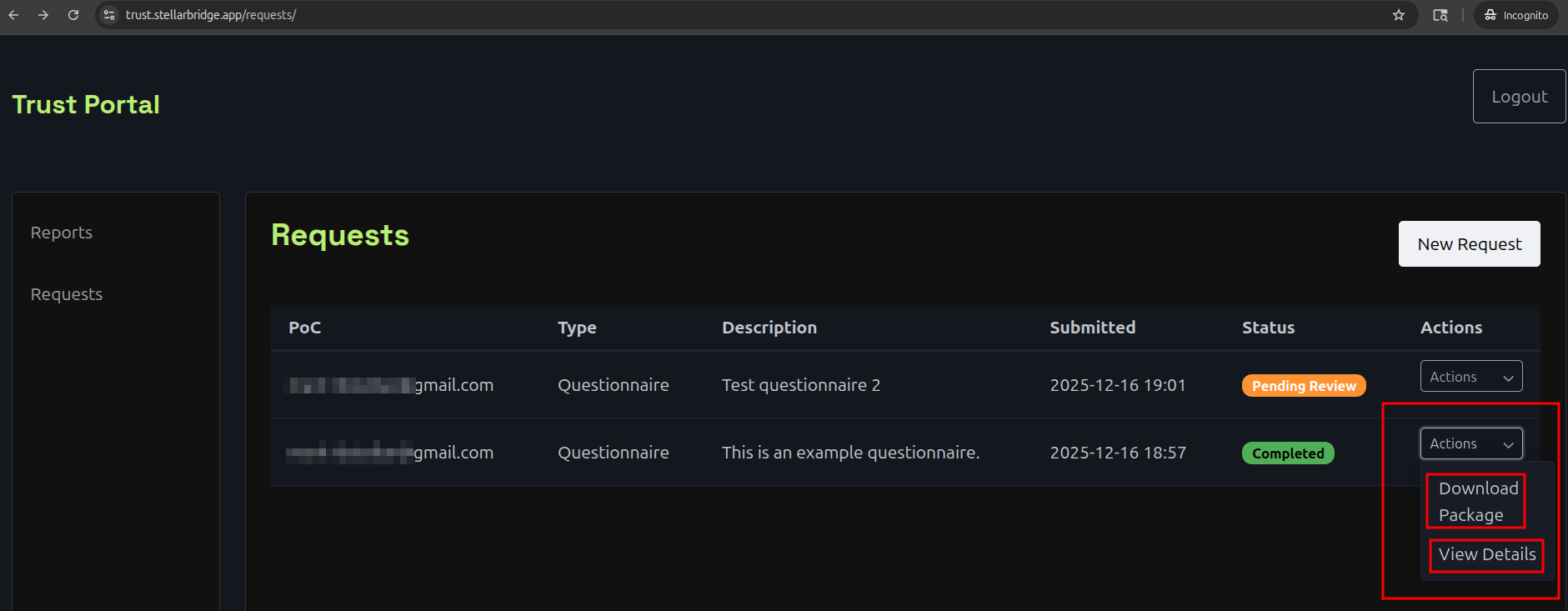
View or download your requests
On the request page, use the "Actions" dropdown to download a package of documents prepared for you or to "View Details" about your request.
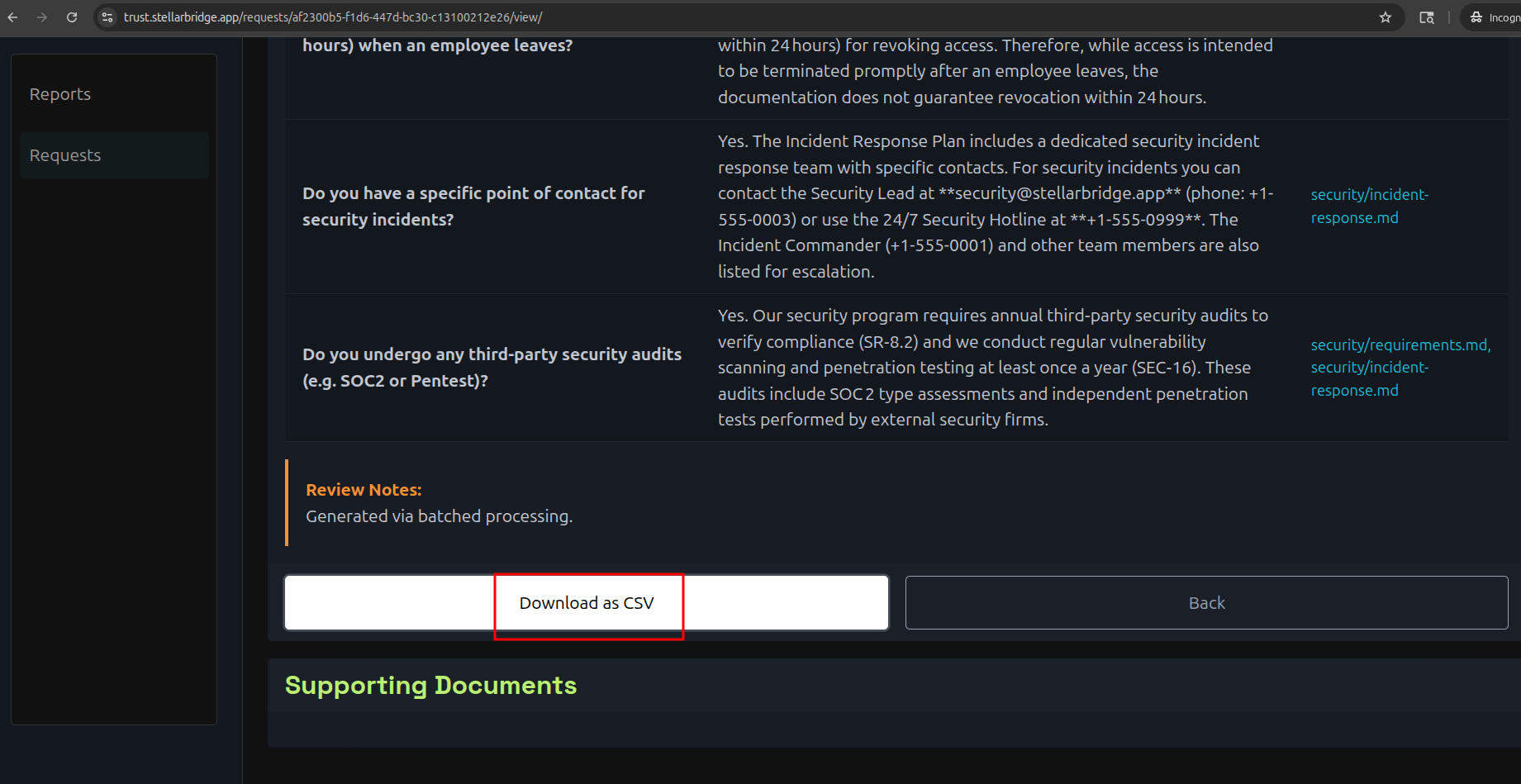
The trust report
You will see the report on this page if you have selected "view Details".
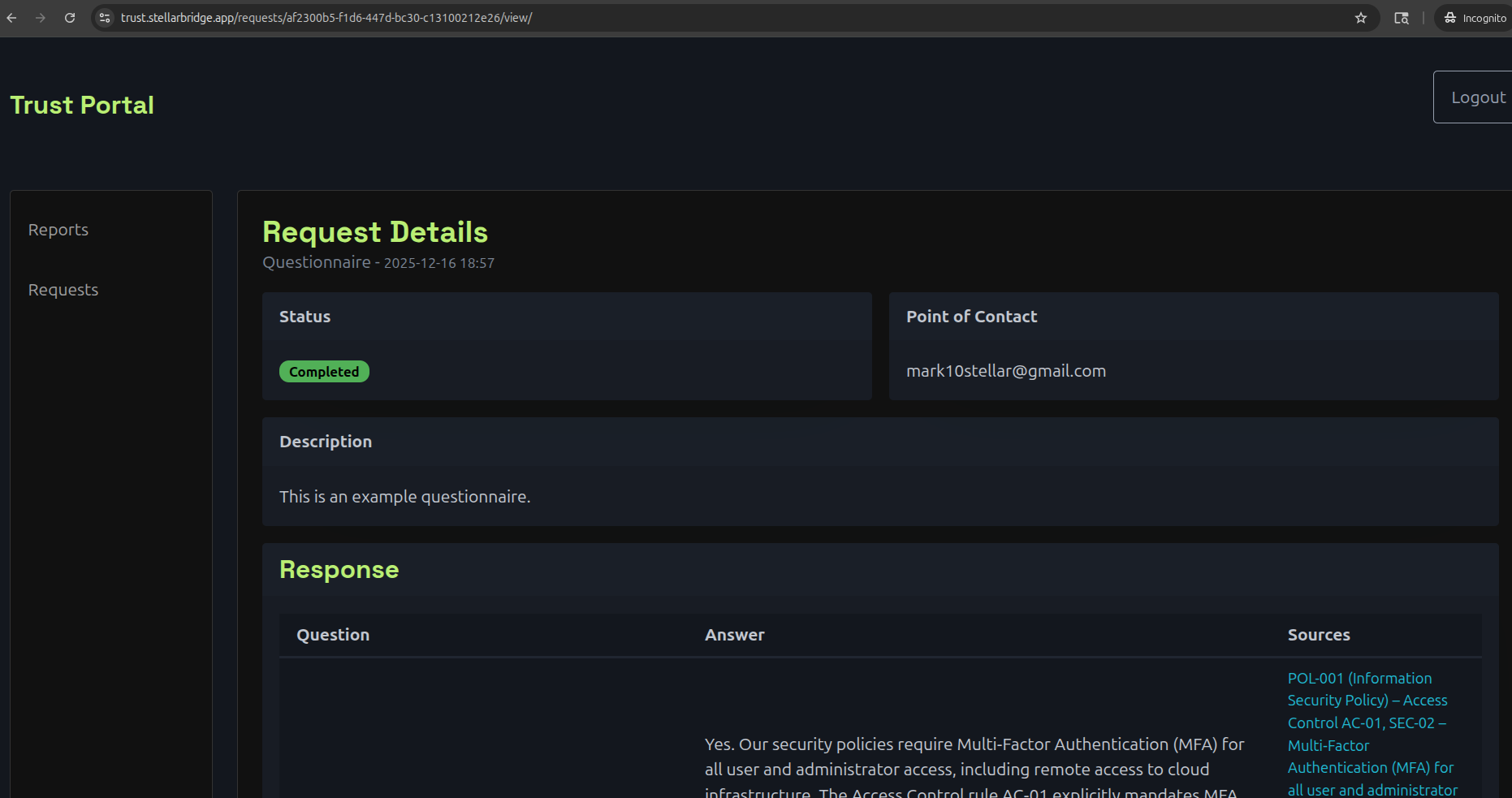
You can also download the report at the bottom of the page.